
royalriddles.com
Introduction
Royal Riddles is an isometric puzzle game built with React, vanilla JavaScript and regular CSS. The logic and rendering doesn't utilize any third party libraries and no AI was used to write the code.
The game is based on the puzzles by Sherzod Khaydarbekov, although I integrated my own designs as well. The puzzles are used with permission.
I chose to use Mantine Component library for modals, theme selectors, switches etc. The reason was no other than I just wanted to try it out and it was a quick way to implement elements that weren't part of the main objective so I could focus more on the game itself.
Isometric projection
This project uses isometric projection to imitate 3D graphics. If you're unfamiliar with isometric projection, here's a quick overview.
When projecting 3D images on a 2D-surface there are different types of projections you may use. Below you can see three common ones.
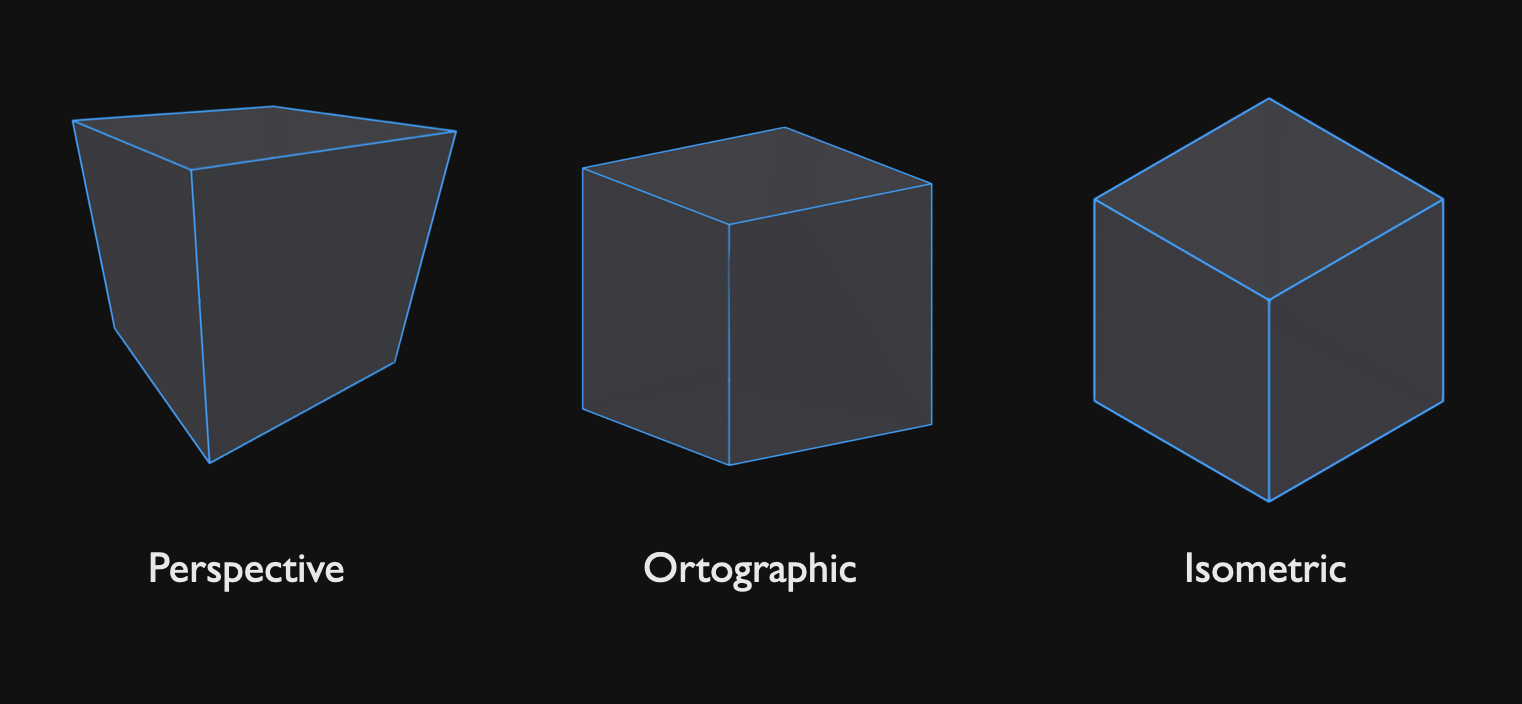
Perspective is what one might consider "normal" projection. 3D objects behaves as they would in the natural world. Parallel lines converge the further away they get.
In orthographic projection all parallel lines stay parallel even though they are further away. This is often used for technical drawings.
Isometric projection is a type of orthographic projection locked in a specific angle. This creates a distinctive 3D-effect. By positioning and layering isometric images and adjusting their z-index, you can fake depth in a 2D environment:
The cubes are not 3D objects, but 2D sprites that simply switch z-index when overlapping one another.
3D models
For the chess pieces I downloaded 3D models from Thingiverse and opened them in a simple online 3D-editor. In the editor I had the ability to change materials, create small felt bottoms, and render them in isometric projection. I further edited the images in Photoshop. See the entire process below.
I then remade the entire process for all pieces. I was very careful to render them in the exact same angle and size so they would be visually coherent.
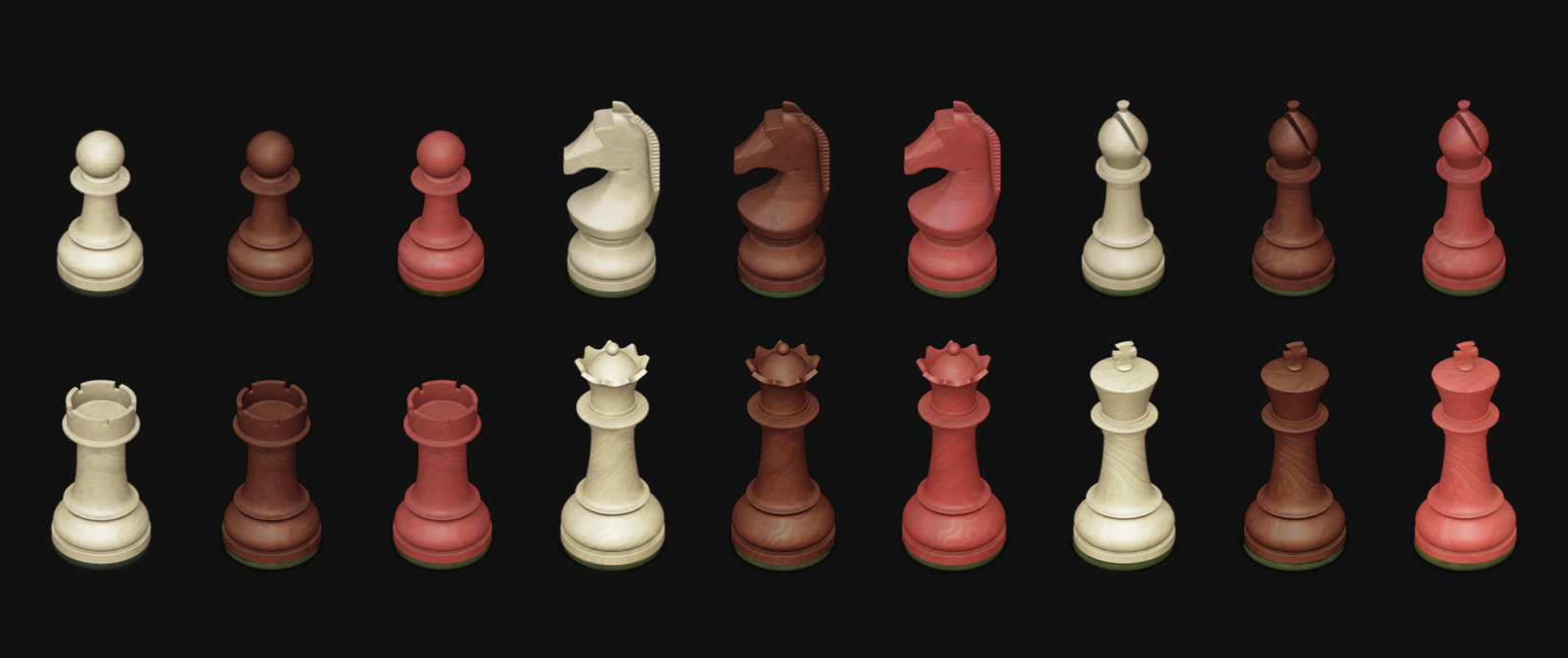
The tiles were created from simple blocks. I made two versions of each: a normal state and a hover state.
Rendering board
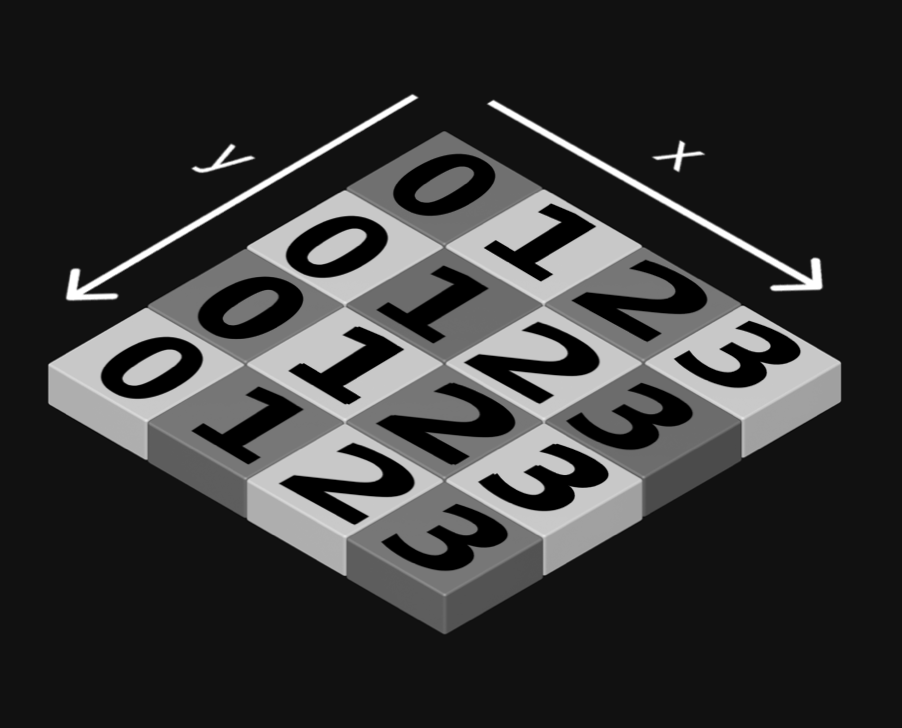
When rendering the board I came up with a matrix to map out the puzzles. Each cell in the matrix represents a tile on the board:
// each array inside board is a row on the x axis
const board = [
  [0, 1, 2, 3],
  [0, 1, 2, 3],
  [0, 1, 2, 3],
  [0, 1, 2, 3]
];
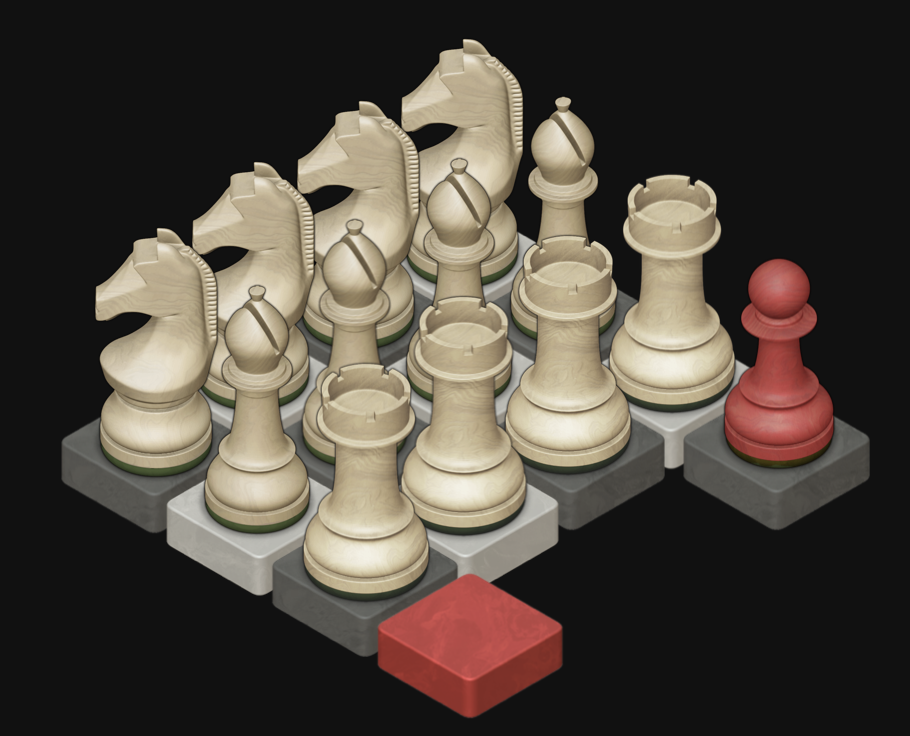
The value in the cell will determine which piece will be rendered. I used standard chess notation along with custom flags to determine which piece to render.
- Pieces
- P: Pawn
- B: Bishop
- N: Knight
- R: Rook
- Q: Queen
- K: King
- Tiles
- - : Empty tile
- null: No tile
- Flags
- D: Dark piece
- H: Hero piece (red piece)
- G: Goal (red tile)
// This array generates the board below.
const board = [
  [N, B, R, PH],
  [N, B, R, null],
  [N, B, R, null],
  [N, B, R, -G]
];
All tile and piece images were square. Simply placing them in a grid results in the wrong look for isometric projection. To achieve the correct effect, tiles must be overlapped according to isometric coordinates.
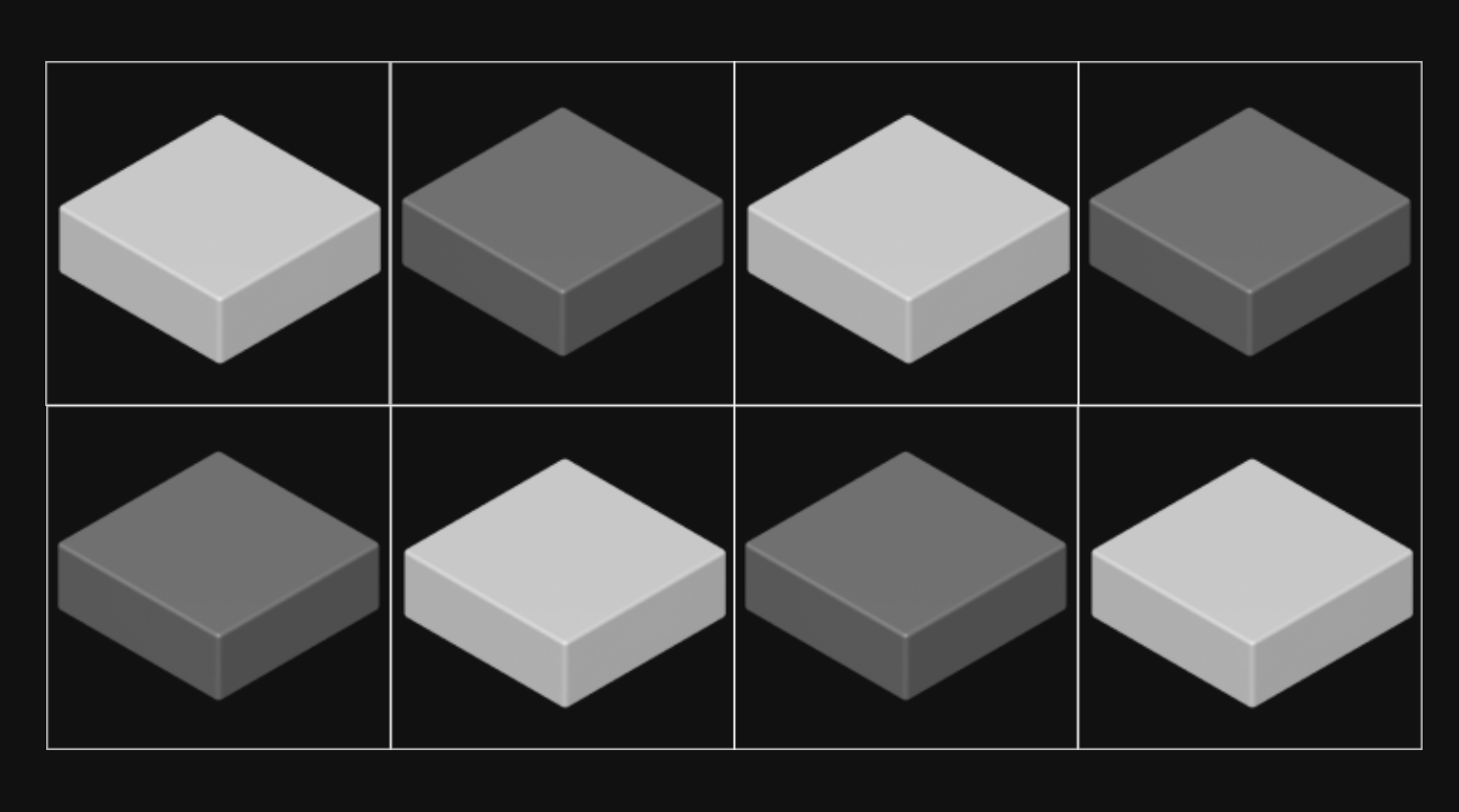
To achieve the correct effect I had to carefully overlap them according to isometric coordinates. Here is a great breakdown on how isometric coordinates work. It was to great help when working on this project.
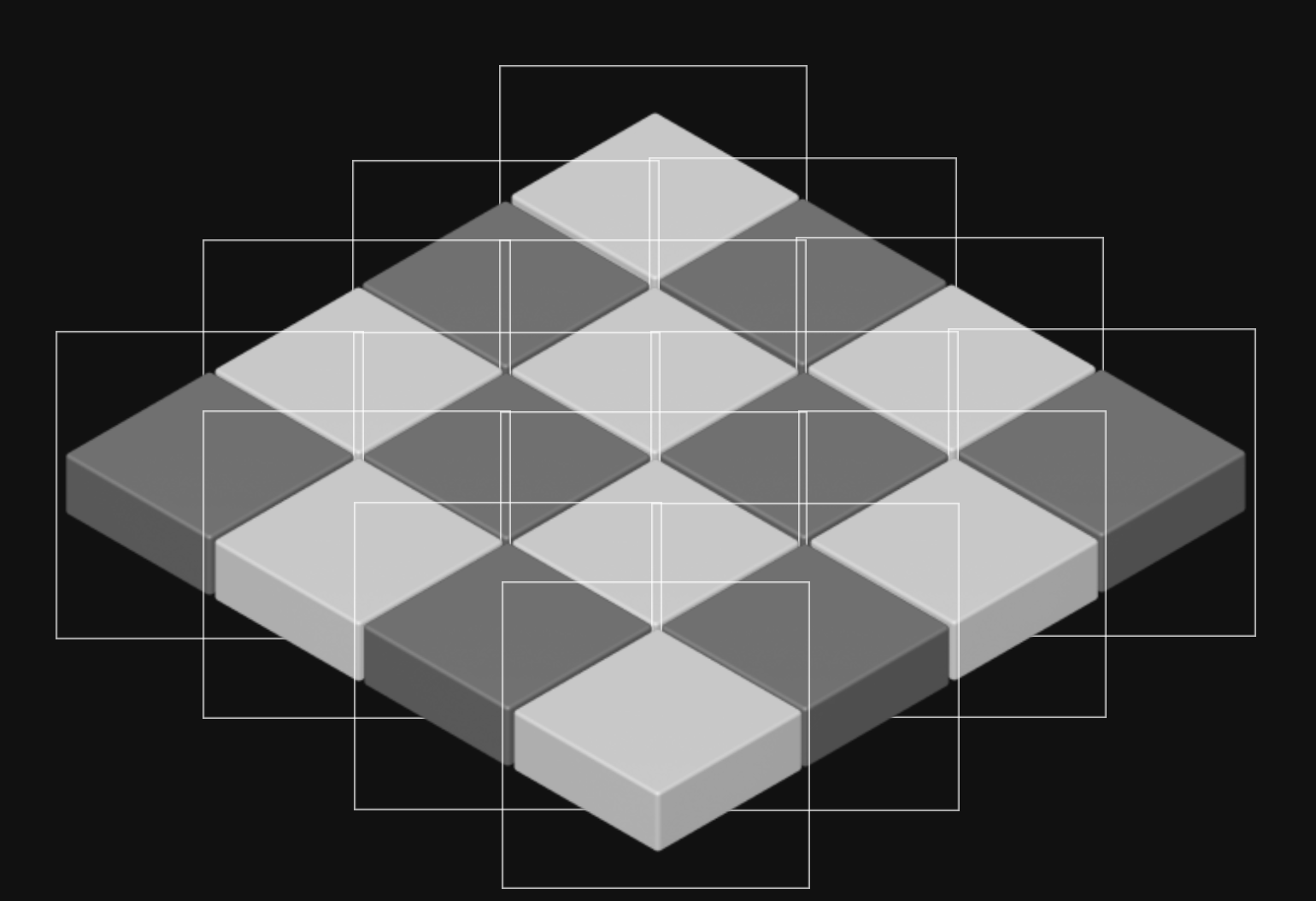
When rendering out the tiles and pieces it's important to render them in the correct order so they get the correct z-index. Each new tile will be displayed on top of the old one. Luckily if I rendered the tiles according to the order in the matrix they naturally got the correct order.
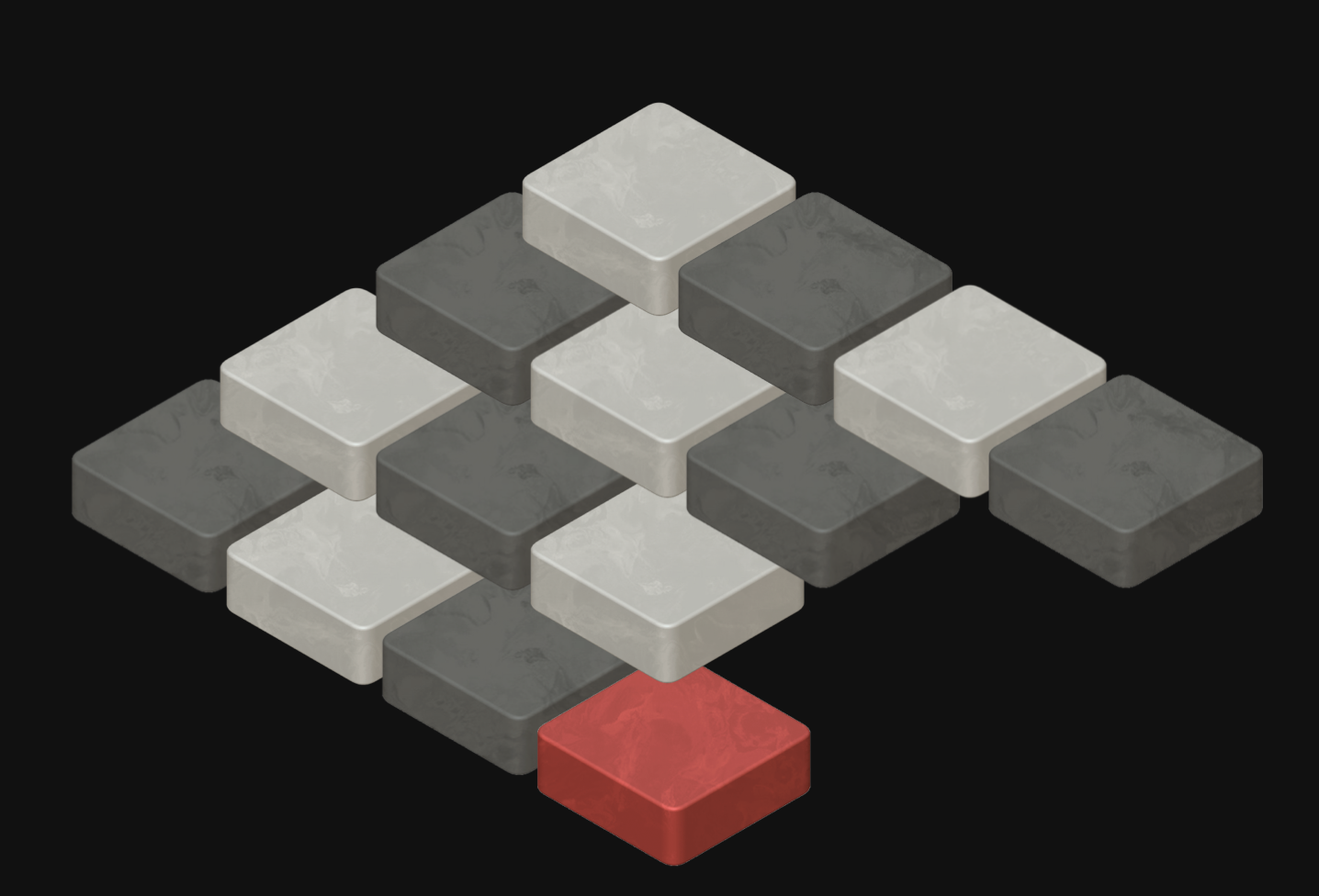
Once the tiles are drawn, the pieces are rendered on top in the same order.
Moving the pieces
I now had another problem. How does the user click on a piece that is covered by another piece? Remember, the images are square and even though they don't seem to overlap one another they in fact almost cover eachother completely:
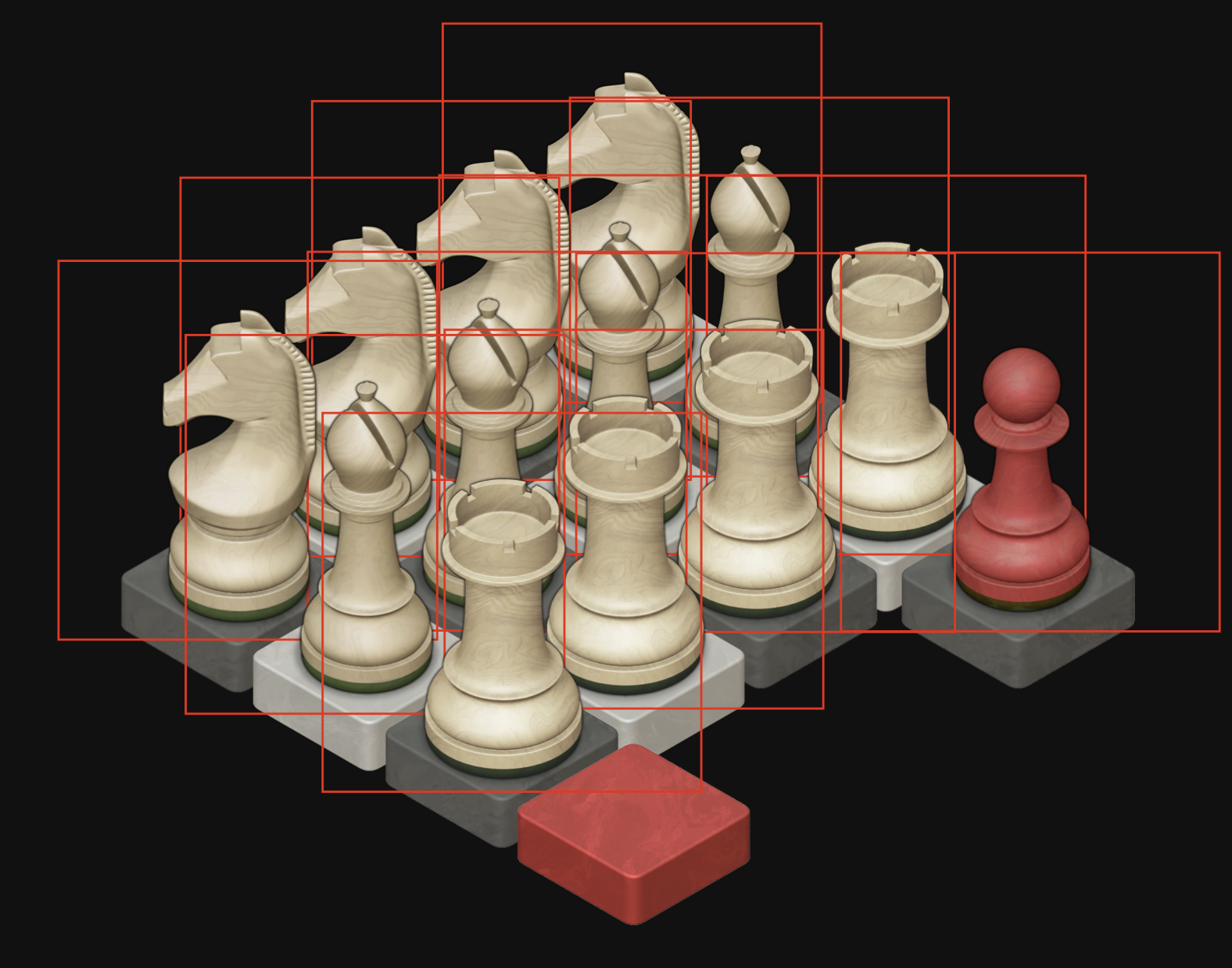
Notice how, for example, the knight on the tile furthest away is almost completely covered by its surrounding pieces. Only the ear is clickable. Of course this will lead to terrible UX and frustrated players. I had to come up with another solution...
The solution was actually quite simple and has already been solved many times. You simply make the tiles clickable, making it possible to "click through" pieces. This is how other isometric games work. You very rarely actually click on the sprite themselves, but rather on the tile the sprite is placed on.
For this I had to use a slightly different approach than when rendering out the square sprites. I did not want any overlap at all.
I could simply create a square button element, rotate it 90 degrees and then squish it down on the y-axis until it just barely covers one tile. Below is an early test of a "touch target" component.
We can now render out the touch targets above the pieces.
When clicking a touch target it first retrieves the piece that is connected to that position. Each piece and touch target knows its own coordinates so it is easy for the touch target to find the correct piece.
Next it checks for a valid move. There will at all times only be one empty tile so if a piece has a valid move, simply move it to the empty tile.
const handleClick = () => {
  const piece = getPiece(yPos, xPos);
  if (hasValidMove(piece)) {
    makeMove(piece);
  }
};
The board matrix updates, triggering a re-render.
Let's move the bottom rook in this example. Remember, each piece will always move to the empty tile (-)
// Starting postition.
const board = [
  [N, B, R, PH],
  [N, B, R, null],
  [N, B, R, null],
  [N, B, R, -G]
];
The rook is moved to the empty tile. The program makes sure to leave the G-flag in place and only switch place on the "-" and "R".
// The rook is moved to the empty tile.
const board = [
  [N, B, R, PH],
  [N, B, R, null],
  [N, B, R, null],
  [N, B, -, RG]
];
To create a jumping effect, I used two animations.
The first animation plays just after the use clicks a piece.
Once it finishes, the board state updates. Each piece has a "spawn animation":
Animation 2 plays on the newly rendered piece. This works because React only fully rerenders the tile that changed.
When playing the animations fast it gives a subtle jumping effect.
The puzzle initially fades in, so all the spawn animations happen while invisible.
Checking for wins
My first idea was to check whether all H-pieces were on G-tiles. This failed when creating the puzzle "Exchange the Kings," which has no H-pieces.
The logic I came up with was to have a separate matrix where I marked the tiles that were part of the solution. This decouples rendering from win logic.
Below is the solution matrix for the "Pawn = Queen" puzzle. Remember, the goal tile is in the bottom right corner. Since a player can promote a pawn to a piece of their choice I didn't want to check for a specific piece on that tile. I only cared about the H-flag.
const solution = [
  [null], //Row 1
  [null], //Row 2
  [null], // Row 3
  [null, null, null, H] // Row 4
];
A custom hook collects all goal tiles:
export default function useGoalTiles() {
// Get the solution from the current puzzle.
  const { getSolution } = useContext(BoardContext);
  const solution = getSolution();

  let goalTiles = [];
  // Loop though the solution array (depicted above)
  // and store the coordinates.
  solution.forEach((row, rowIndex) => {
    if (!row) return;
    row.forEach((tile, tileIndex) => {
      if (!tile) return;
      goalTiles.push([rowIndex, tileIndex]);
    });
  });
  return goalTiles;
};
Then it checks the actual board state against these coordinates:
const useCheckForWins = () => {
  const { board, getSolution } = useContext(BoardContext);
  // Retrieve the tiles which to check for winning conditions.
  let goalTiles = useGoalTiles();
  let nrOfGoals = goalTiles.length;
  let [isSolved, setIsSolved] = useState(false);

  useEffect(() => {
    let nrOfGoalsCompleted = 0;
    const solution = getSolution();
    goalTiles.forEach((tile) => {
      // tile[0] refers to Y position, tile[1] refers to X position.
      if (board[tile[0]][tile[1]].includes(solution[tile[0]][tile[1]]))
        nrOfGoalsCompleted++;
    });
    setIsSolved(nrOfGoalsCompleted === nrOfGoals);
  }, [board]);

  return isSolved;
};
When all goal conditions are met, the puzzle is solved.
Animated heading
I spent some time on making this transition effect for the heading and I wanted to share how I created it.
I wanted to create a smoke like transition and for this I used a CSS image mask. It is relatively straight forward to use. Just plug in an image with a transparent background and the transparent areas will be cut off:
.heading {
image-mask: url(”/transparent-image.png”)
}
Initially, I tried using a transparent video, but formats with transparency are limited, and converting to GIF caused heavy compression, low framerates, and no control over timing.
The solution I came up with in the end was to use multiple masks, each one a bit more faded than the previous one, and then blend between them:
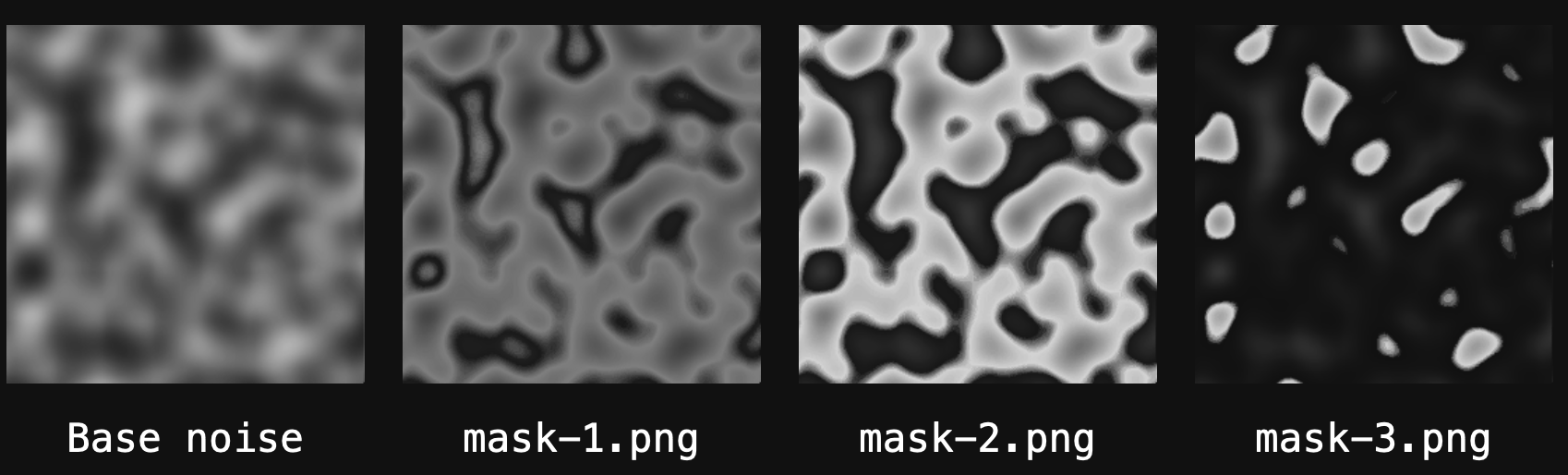
Below you can see these masks applied to a heading:
I stacked four versions of the heading directly on top of eachother and faded out one after the other:
The result was a smooth and performant animation. I also had complete control over the animation speed. With JavaScript and css variables I could change one variable in the code and the animation would adjust accordingly.
.layer0.fadeIn {
  animation: fadeIn calc(var(--transitionDuration) * 2) linear
    calc(var(--transitionDuration) * 0.5) forwards;
}
.layer1.fadeIn {
  mask-image: url("/heading-mask-1.png");
  animation: fadeIn var(--transitionDuration)
    calc(var(--transitionDuration) * 0.25) forwards;
}
.layer2.fadeIn {
  mask-image: url("/heading-mask-2.png");
  animation: fadeIn var(--transitionDuration) linear
    calc(var(--transitionDuration) * 0.1) forwards;
}
.layer3.fadeIn {
  mask-image: url("/heading-mask-3.png");
  animation: fadeIn var(--transitionDuration) linear forwards;
}
Notice how no transition uses hard coded values. Everything is derived from the variable "transitionDuration".
I set the css variable with JavaScript like this:
const TRANSITION_DURATION_IN_MS = 500;
const root = document.documentElement;
root.style.setProperty(
  "--transitionDuration",
  ${TRANSITION_DURATION_IN_MS}ms
);
The reason I set the variable in JavaScript is because I needed the variable in my code for timing purposes in the transitions and I wanted to avoid to have two sources of truths for the transition duration.
Conclusion
This was a fun and quite challenging project to make. I went through many, many different approaches to the rendering and logic before settling with the current solution. At times I felt really lost and frustrated and there aren't really that many resources on how to create these things so a lot of the work involved coming up with my own methods and solving unique problems.
All in all I'm very pleased with the finished result and it is almost exactly as I envisioned it. If you made it this far, then thank you for reading! I hope you found this breakdown interesting and hopefully you learned something new!